
Docs
Install DeepSeekBot
Import the public npm plugin in DSH, enable Bot mode and create a PersonaBot.
Install the DeepSeekBot plugin in DeepSeek Harness (DSH), enable it and create your first PersonaBot. You install one product package; Core, Client and the qualified IM Provider arrive with it.
This guide uses the public npm prerelease deepseekbot@0.1.0-alpha.1, verified with DSH 0.2.0-rc.1. It is an early preview. Screenshots show a clean Profile using the Chinese DSH interface; the captions name the corresponding controls. No repository checkout or local build is required.
1. Open Plugins
Start DSH and open its Web interface. If DSH is not installed yet, follow the official DSH getting-started documentation. Follow API and Bot model setup to configure a provider first; apply a model preset in the Bot Profile after creating the Bot.
Click Plugins (插件) in the left sidebar, then Add plugin (添加插件).
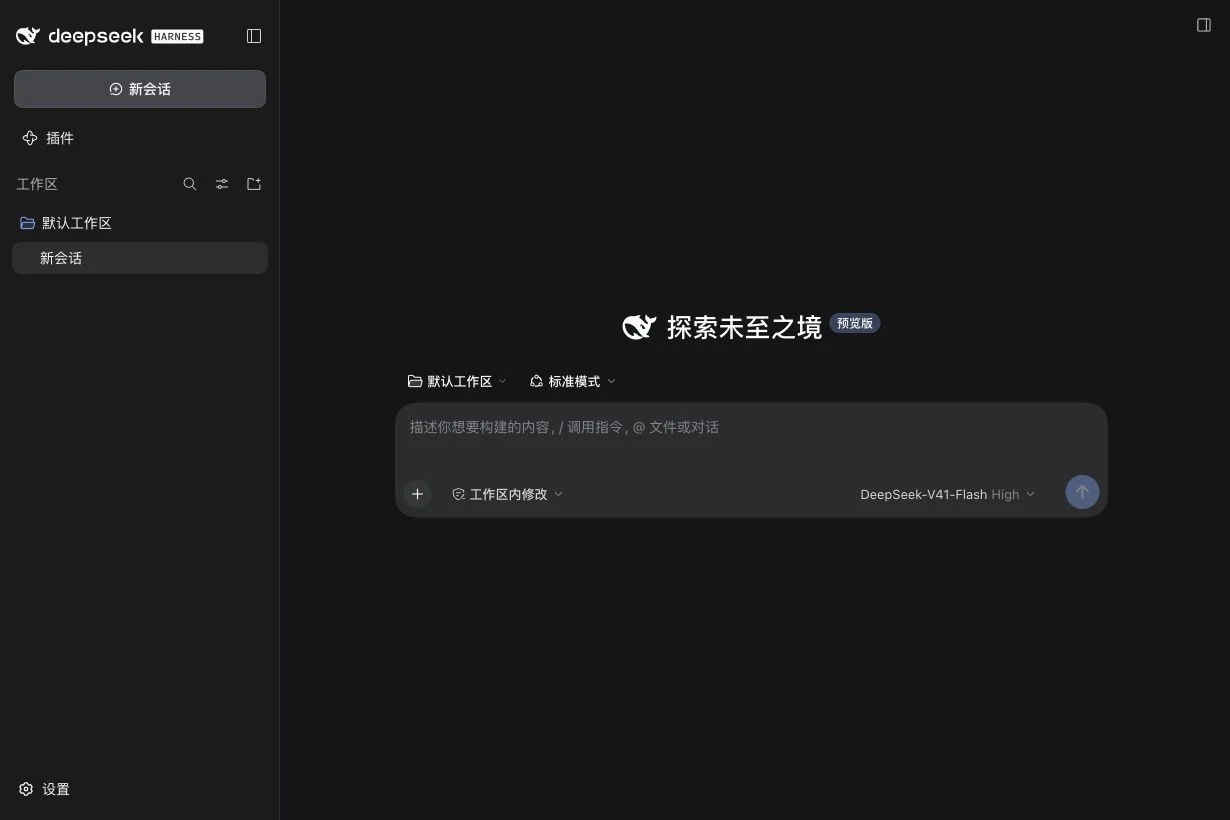
2. Enter the public package name
Paste this exact value into Package name or address (包名或地址):
deepseekbot@0.1.0-alpha.1
Keep npm official registry (npm 官方源) as the installation source and click Install (安装). Wait for the installation task to finish.
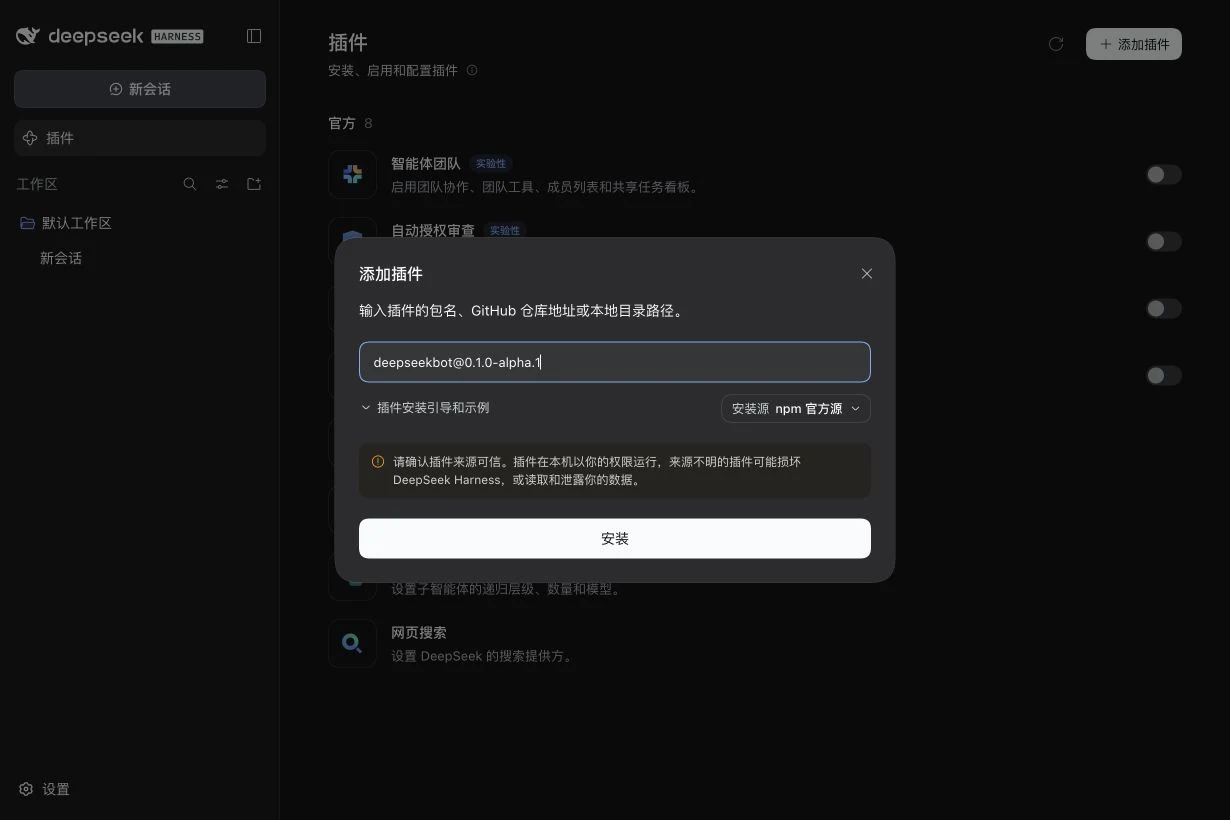
This field imports the package source. It is not a file-upload picker. The pinned version makes the installation repeatable.
3. Enable the installed plugin
The completed task shows Installed (已安装), the package name and version 0.1.0-alpha.1. Click Enable now (立即启用). If you closed the task, return to Plugins and turn on Enable deepseekbot (启用 deepseekbot).
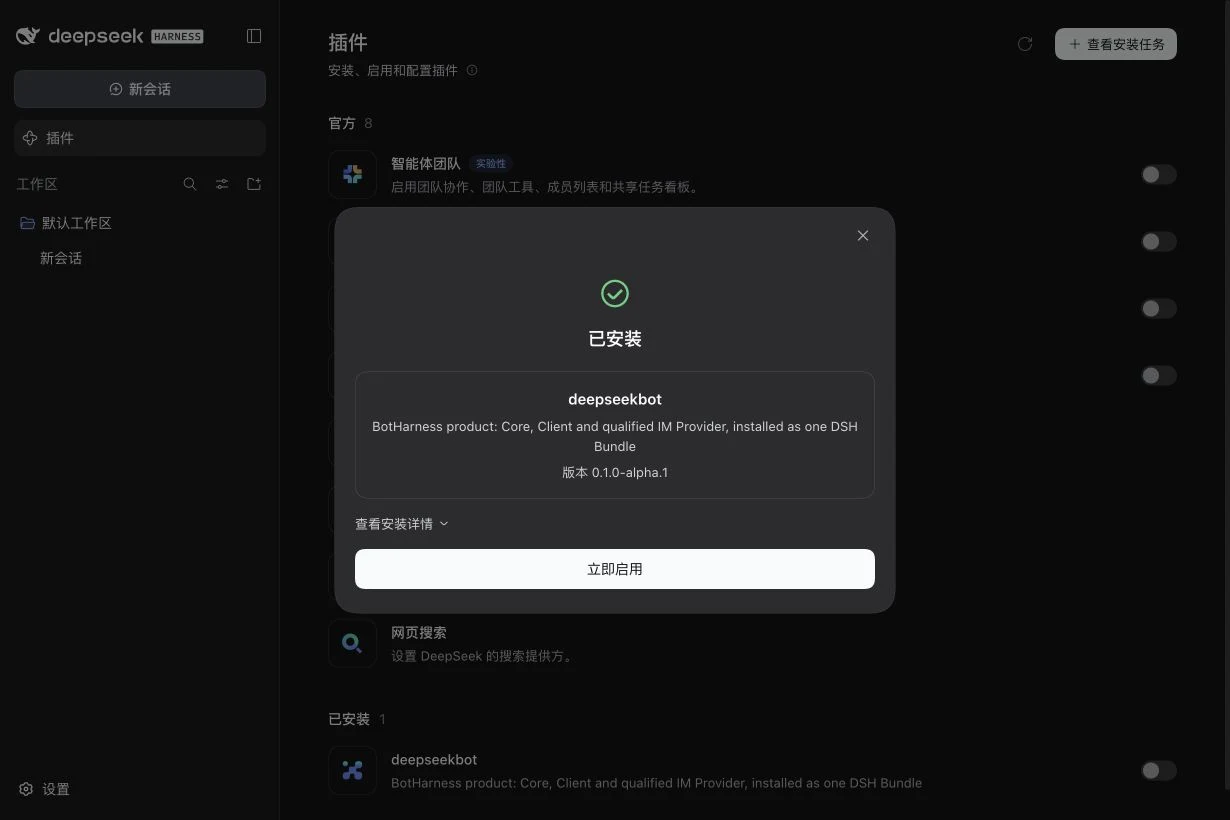
Once enabled, Bot mode (Bot 模式) appears in the sidebar. In the verified RC1 setup it loaded immediately. If your DSH reports that a restart is required, restart the same DSH Profile and reopen its Web page.
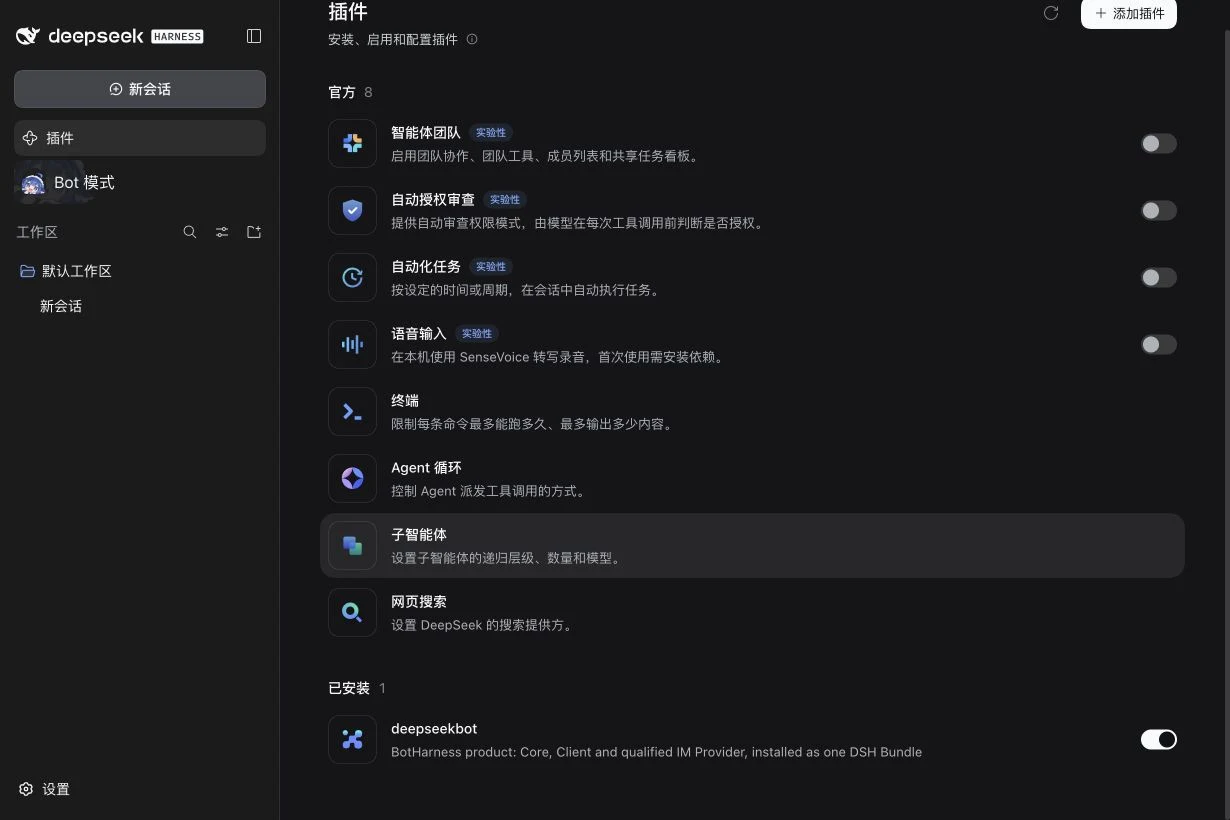
4. Open Bot mode
Click Bot mode (Bot 模式), then Create your first PersonaBot (创建第一个 PersonaBot). Enter a name and click Create (创建); role and description are optional.
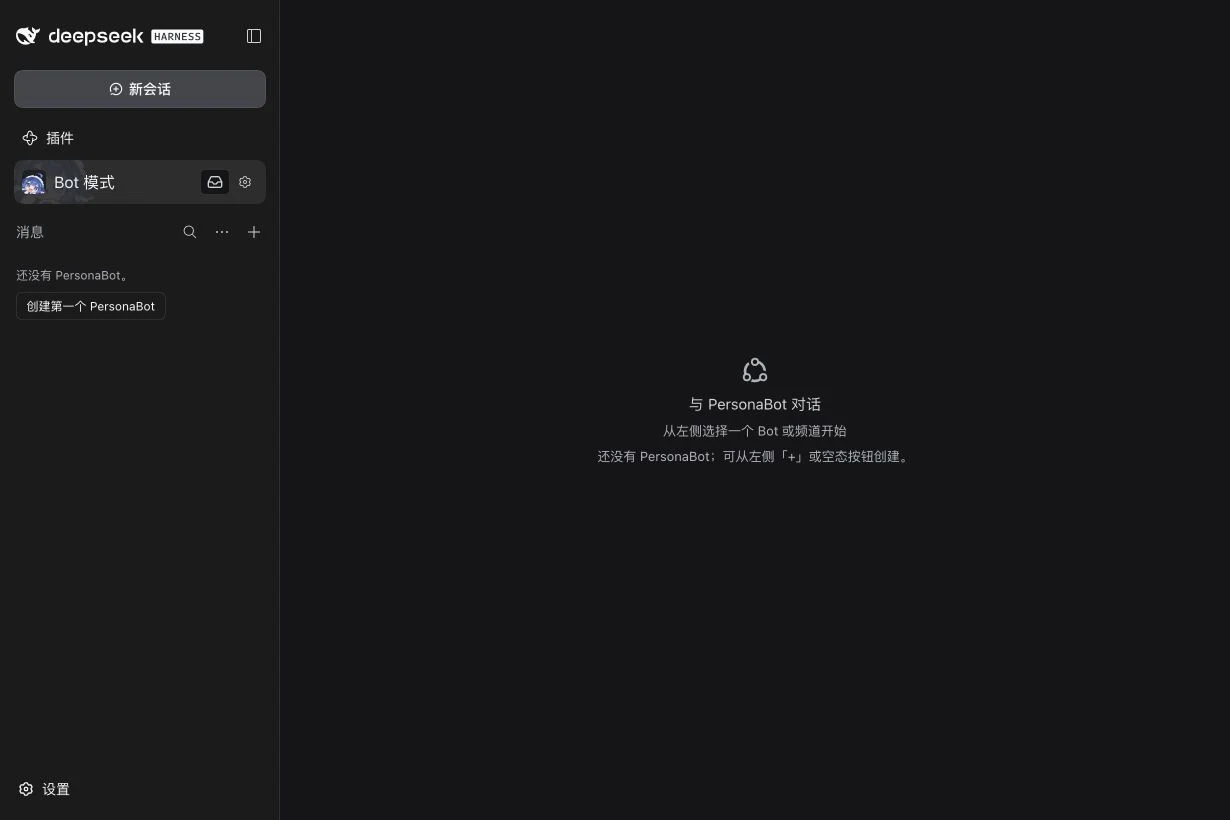
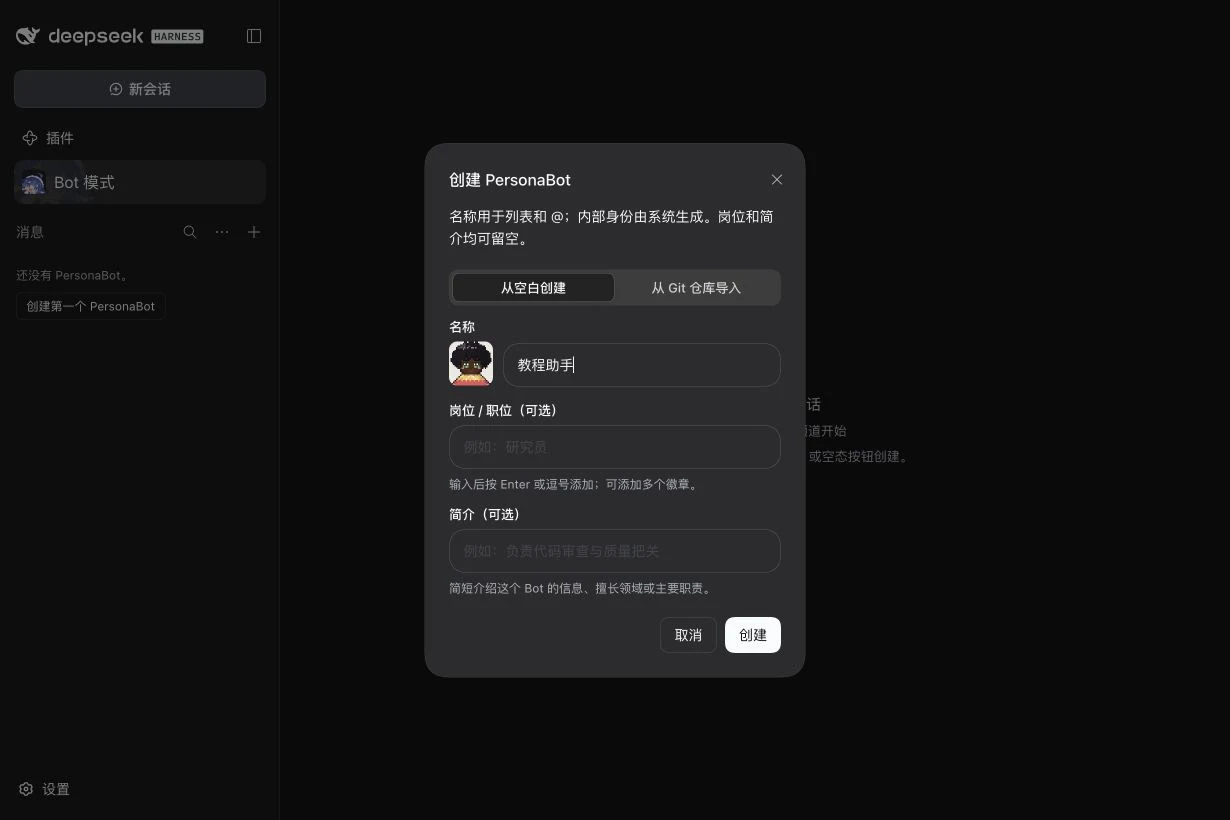
Open the new Bot's DM and click its header name/avatar → View details → Model preset. Choose Orchestrator and Assignment models, then Create and apply. See API and Bot models for all fields. Return to the DM and send a short greeting. A reply verifies that your model is usable as well as the plugin being enabled. Model credentials are configured in DSH; npm installation does not provide them.
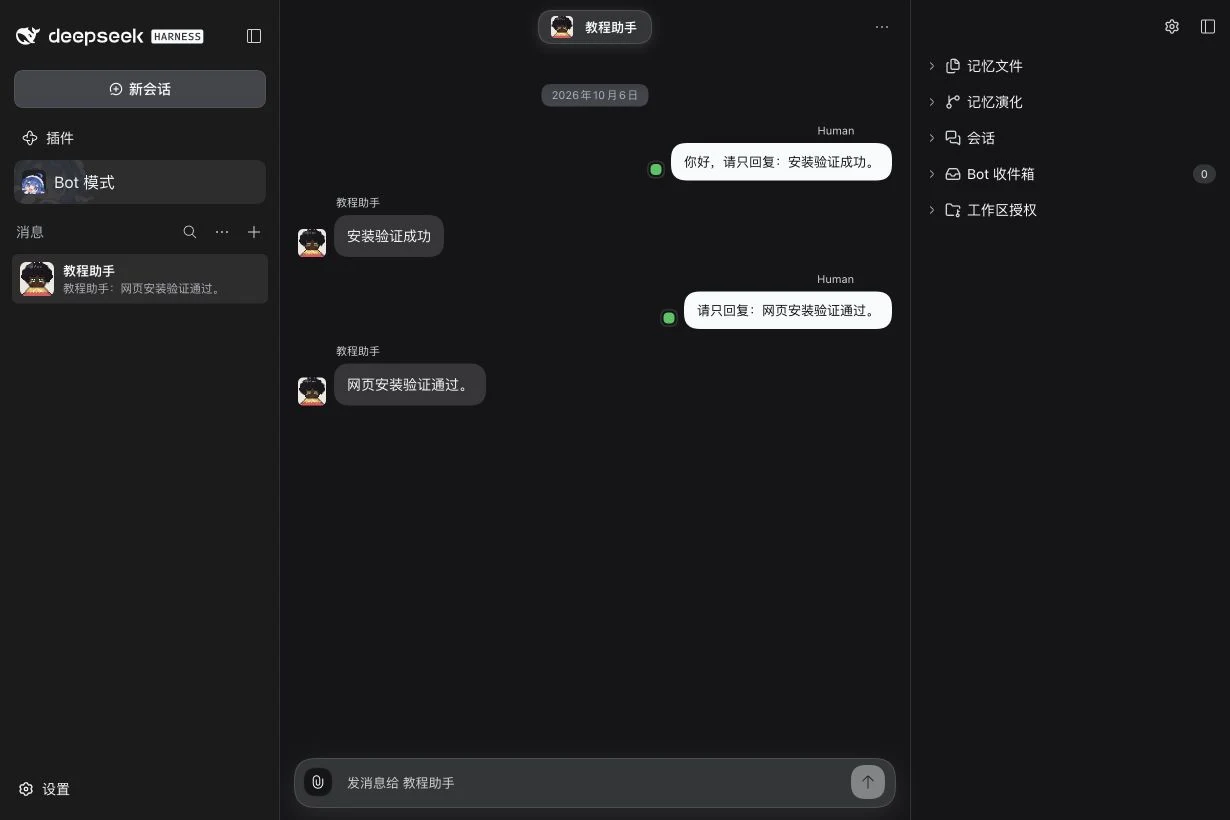
The verification Bot answered a message sent through the Web DM after installation and a cold Host restart. Messaging app accounts remain disconnected.
See Settings guide for appearance, concurrency, persona, attention, sidebar, and workspace authorization fields.
5. Connect a messaging app
The initial installation has no IM accounts connected. After the local DM works, follow Connect a Bot to Lark / Feishu. App credentials, external identity binding and group authorization are separate steps; installing the plugin does not authorize external groups.
Other installation methods
The official DSH packaging reference also supports CLI installation into a named Profile:
dsh plugin --profile <your-profile> add deepseekbot@0.1.0-alpha.1
Use the Profile you actually start. Enable the plugin in that Profile's Plugins page afterward.
To import the same precompiled archive, download the public npm tarball. In the Web interface, enter its absolute path on the machine running DSH in Package name or address; a path on a different browser machine is not a Host path. With the CLI you can instead use dsh plugin --profile <your-profile> add ./deepseekbot-0.1.0-alpha.1.tgz from the download directory.
If installation does not finish
| What you see | Next check |
|---|---|
| Package or version not found | Check the exact package spelling and version, choose npm official registry and retry once registry metadata is available. |
| Installed but no Bot mode | Enable deepseekbot in the current Profile; follow any DSH restart notice, then reload the Web page. |
| Bot mode works but the Bot cannot reply | Check the selected model and DSH credentials; installation and model access are separate. |
| IM settings are empty | Add the app account through the connection guide; an empty account list is expected on first installation. |
For source development rather than installation, see the repository README and local development guide.