
Docs
Connect a Bot to Slack
Configure a Slack app, bind a Bot identity and verify authorized public-channel messages.
Connect a PersonaBot to a public Slack channel: configure an application, connect it locally, bind the Bot's identity and authorize the channel. Start with messages that @mention the application bot, then verify a reply in the same Slack thread.
Understand the three settings
| Setting | Location | Purpose |
|---|---|---|
| IM application connection | Settings → IM bots → Slack | Connect this Host to a Slack application bot |
| External identity | PersonaBot detailed Profile | Choose the identity this Bot uses to speak externally |
| Channel connector | Channel detailed Profile | Choose which external messages enter this local Channel or Bot Inbox |
Connecting an app does not authorize every Slack channel. Binding an identity does not mirror messages into a local DM. Each Bot replies with its own bound, authorized identity.
1. Prepare your environment
You need a Slack workspace that allows application installation, permission to create an app (or an administrator's help), and a public test channel. Create a PersonaBot in BotHarness and confirm that it can answer a local DM before testing Slack.
Use a BotHarness product with its qualified IM Provider included. Do not separately install an arbitrary dsh-im version or start a second receiver for the same app.
This guide documents the qualified source preview, not a published npm release. The verified product is 0.0.0-test.868, with Provider 4.32.0-botharness.3 and DSH 0.2.0-rc.1. If you need to build it, follow the product installation notes at that revision. Keep the launcher's login URL private and reuse the same Profile to retain settings.
Screenshots show actual controls and the dedicated “BotHarness Slack QA” app in DoodleBear. Setup and configured states are labelled separately. Configured runtime captures come from the accepted #868 product; shared-Channel captures come from #845. No tokens appear in the images. Open an image to see its original size.
2. Create the Slack application
- In BotHarness, open Settings → IM bots → Slack → Start setup (开始接入).
- Select Copy Manifest (复制 Manifest), then Open Slack creation page. At Your Apps, select Create New App → From a manifest. Choose your workspace, paste the copied configuration, review the app name, permissions and events, and create it. Your organization may require administrator approval.
- Keep the local setup form open; the two token fields will be filled after the app is installed.
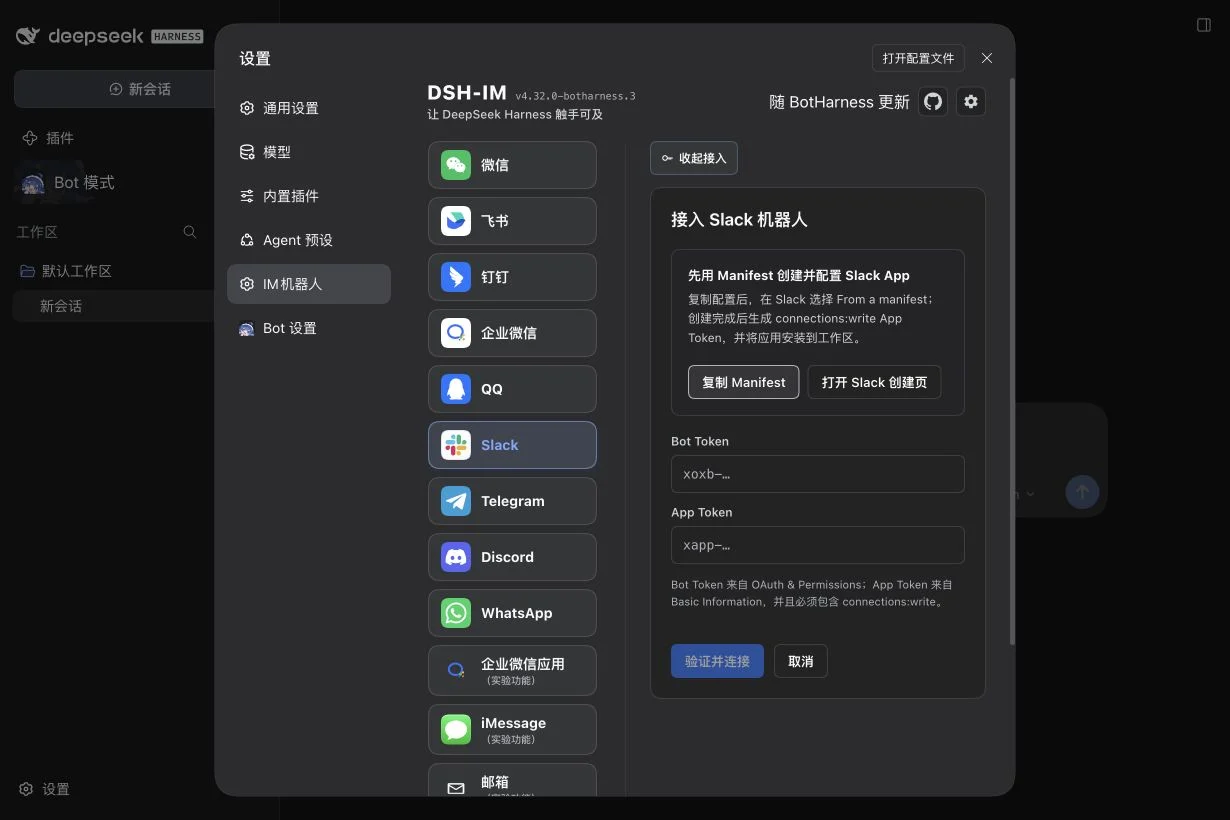
The empty form shows where to start and where credentials belong; it does not prove a connection.
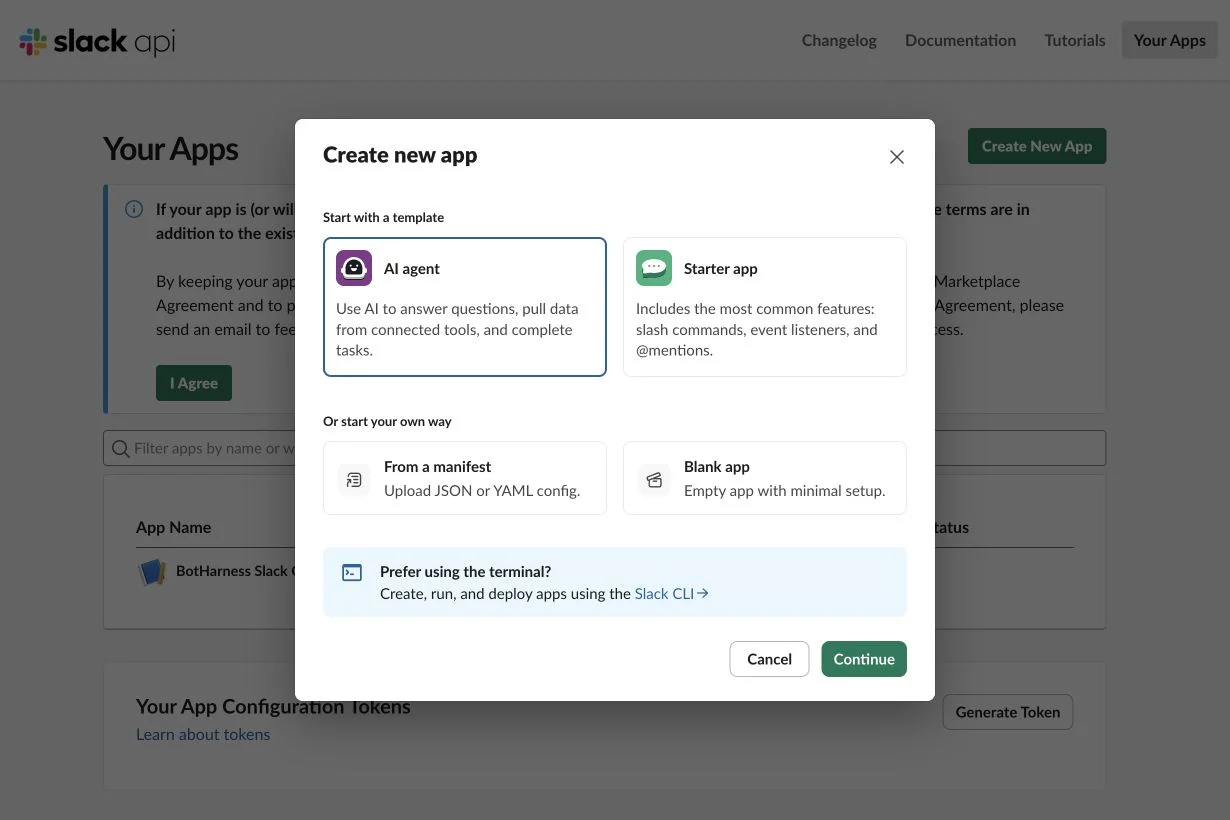
Select From a manifest. This capture stops before creation; reuse your own workspace and application name.
The manifest is a starting configuration, not a credential. Compare your app with the settings below before connecting. Slack's manifest documentation explains how the configuration is applied.
Socket Mode and App Token
Open the app's Socket Mode page and enable it. BotHarness receives events through this outbound WebSocket connection; you do not need a public Request URL or an incoming Webhook.
Under Basic Information → App-Level Tokens, generate an App Token with connections:write. Keep the xapp-… value private; it belongs in the local App Token field, not Bot Token. See Slack's Socket Mode guide.
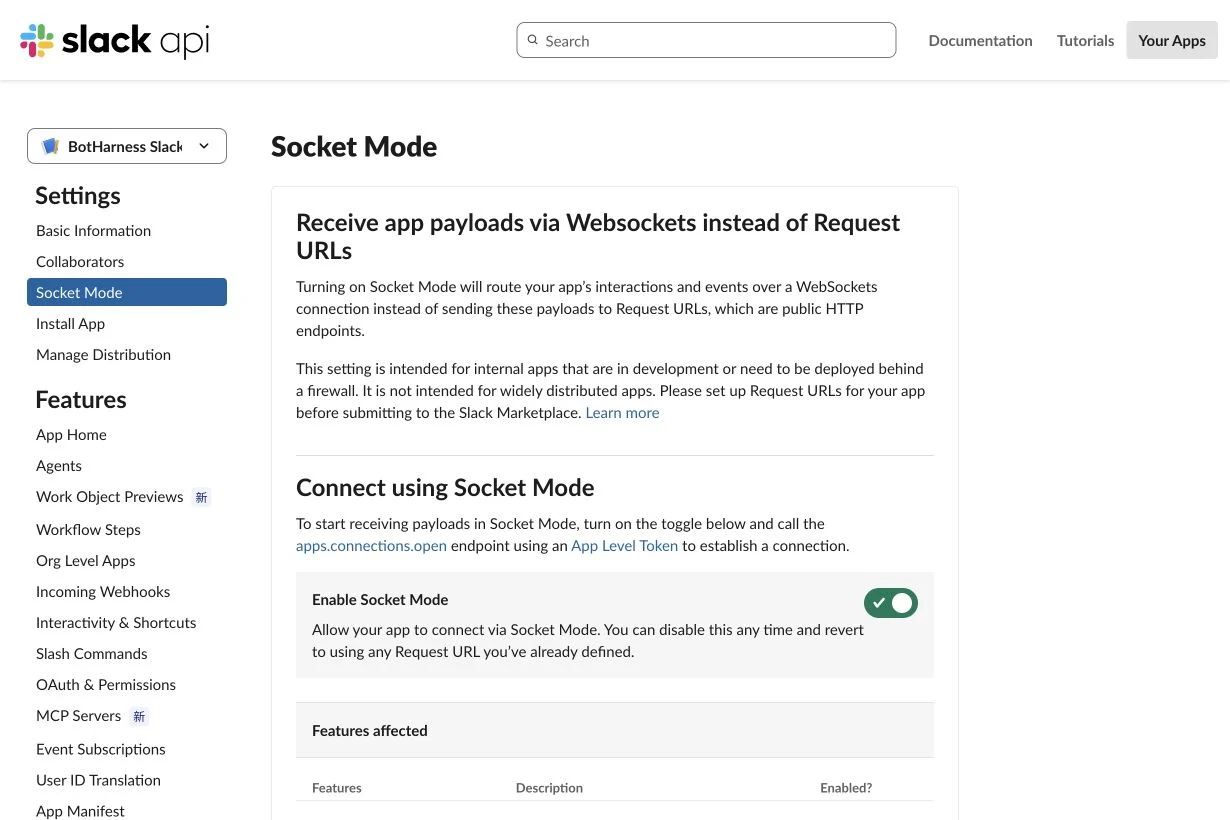
The existing QA app has Socket Mode enabled. This page does not display its App Token.
Bot permissions and events
Under OAuth & Permissions → Bot Token Scopes, check permissions by purpose:
| Bot scope | Used for |
|---|---|
app_mentions:read |
Receive channel messages mentioning the app |
chat:write |
Send and reply as the application bot |
channels:read |
Inspect public channels for authorization |
users:read |
Resolve sender IDs to names |
channels:history |
Read authorized public-channel context; receive ordinary public-channel text when subscribed |
files:read, files:write |
Read a mentioned source file and return a processed attachment; enable when needed |
The screenshots show the already approved QA app, including optional file permissions. Request only the access your use case needs. Adding scopes requires workspace installation or reinstallation before the granted token can use them.
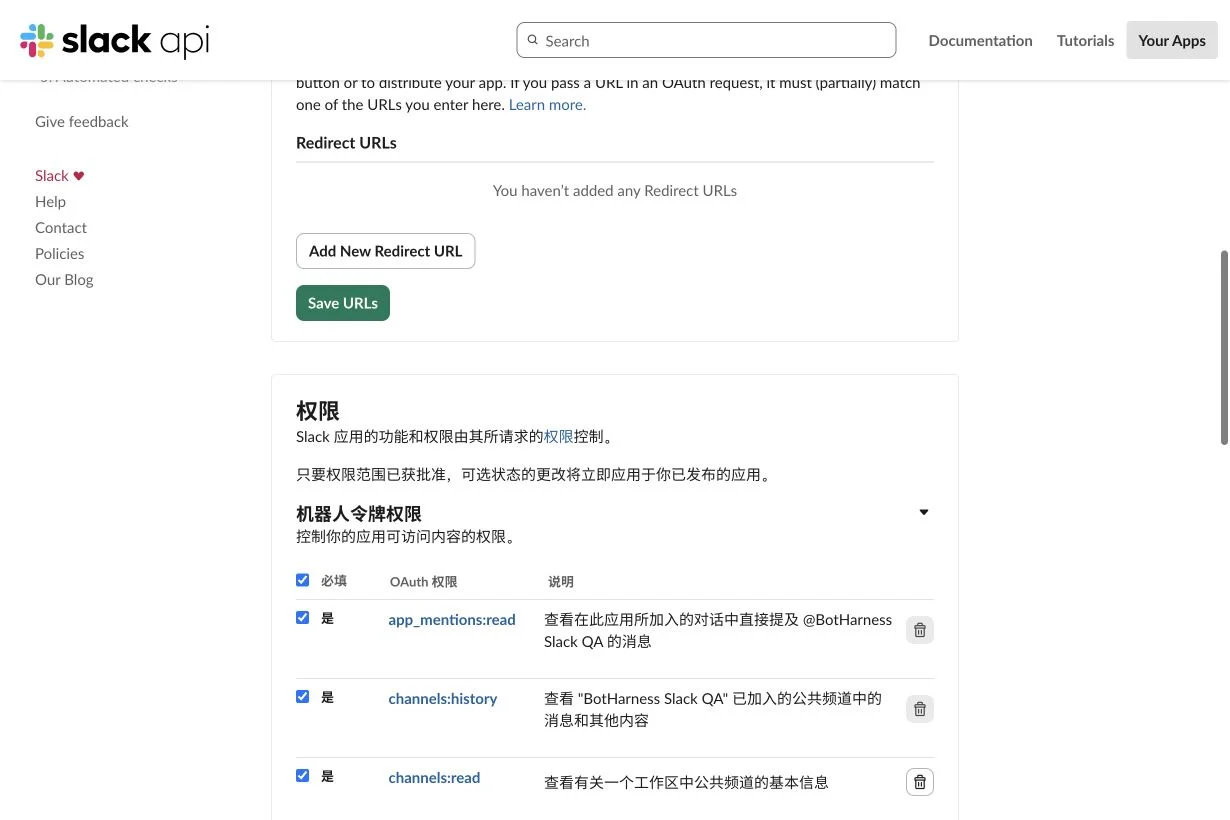
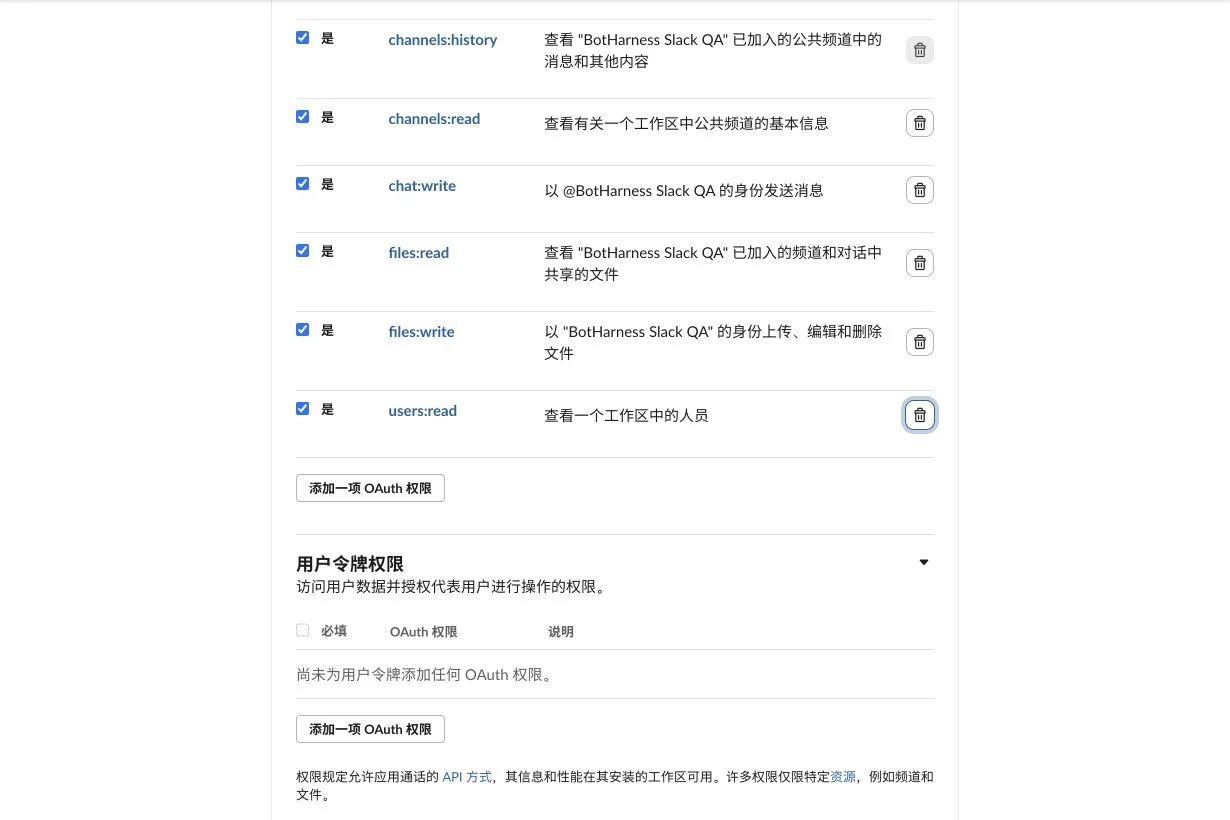
These are Bot permissions. Signing in as a Human, or granting User Token scopes, does not replace the application bot's authorization.
Under Event Subscriptions, enable events and add app_mention to Subscribe to bot events. Add message.channels if you want ordinary public-channel text or topic following. Save the subscription. Socket Mode removes the Request URL requirement.
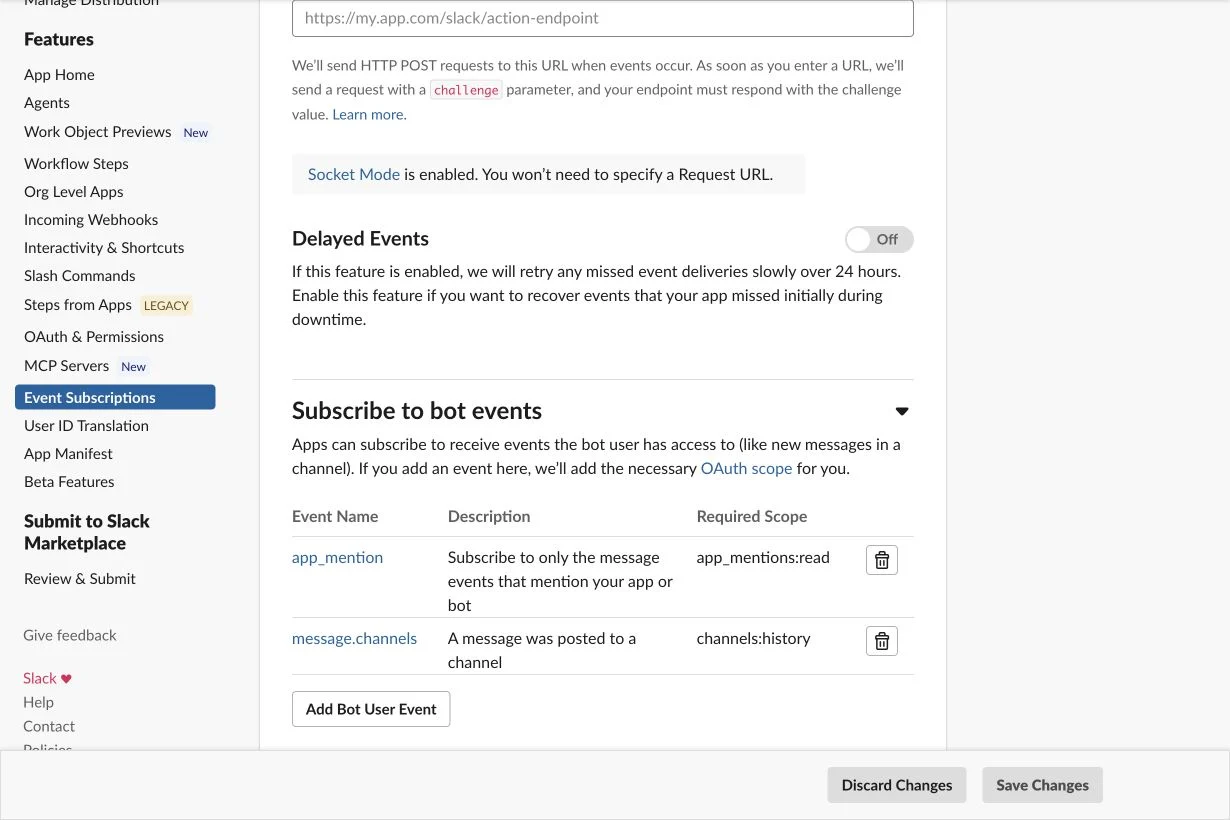
Permissions allow access; subscriptions determine which live events Slack sends. BotHarness still filters them through the authorized channel and intake policy. See the official app_mention and message.channels references.
3. Install and connect locally
- In the Slack app console, use Install App → Install to Workspace (or OAuth & Permissions → Install/Reinstall to your workspace). Review the requested scopes and complete any administrator approval.
- Obtain the Bot User OAuth Token (
xoxb-…) under OAuth & Permissions. This is the Bot Token, used for the installed bot's API operations. It is different from thexapp-…App Token used for Socket Mode. - Return to the local setup form, enter each token in its matching field and select Verify and connect (验证并连接). Credentials stay in the local credentials service; do not paste them into chat, Memory or Git.
- Confirm the app is online in Settings → IM bots → Slack. Invite the application bot to your public test channel through Slack's channel integrations or
/invite @YourAppName.
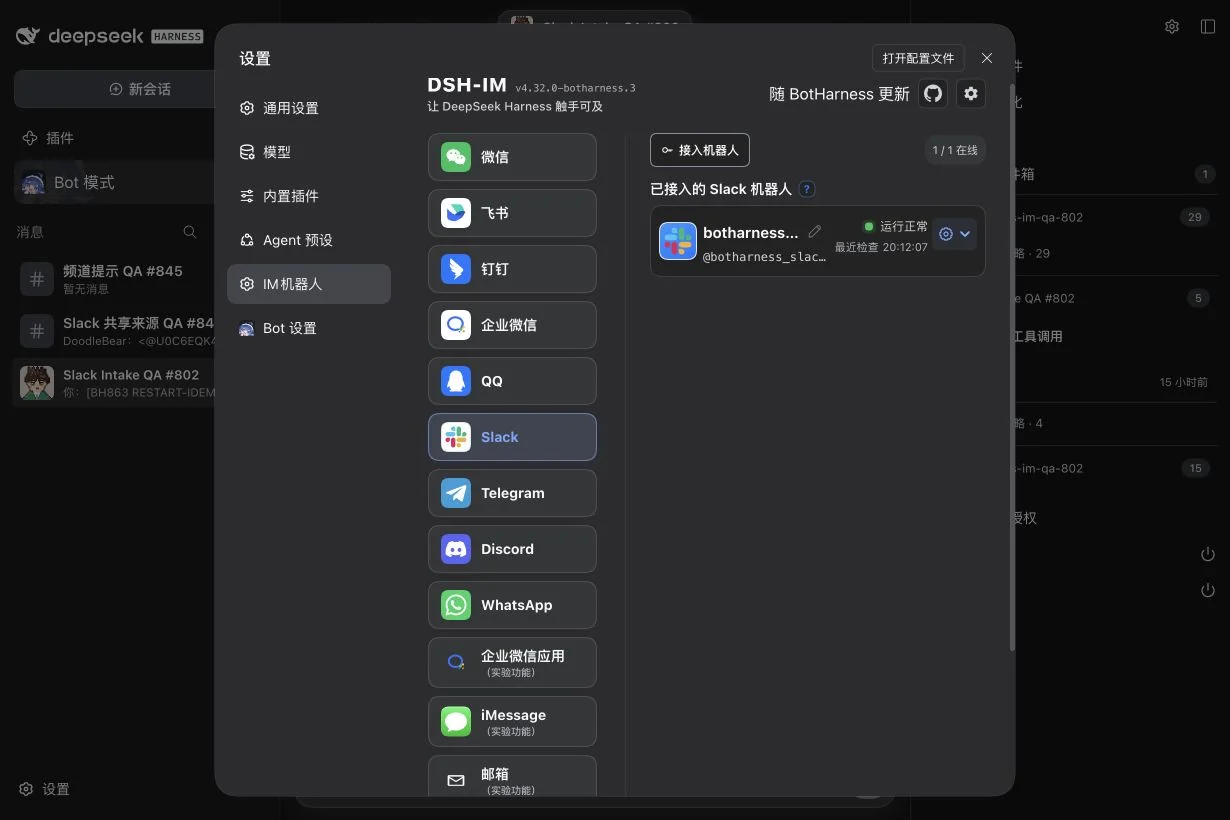
The connected account is the actual #868 installed-product result, not a filled-form mock. See Slack's installation documentation.
4. Bind the PersonaBot and authorize a channel
Open the PersonaBot's detailed Profile → External identities (外部身份). Select Bind identity (绑定身份), choose the connected Slack application account and save. One Bot can bind identities on several platforms, with one identity per platform.
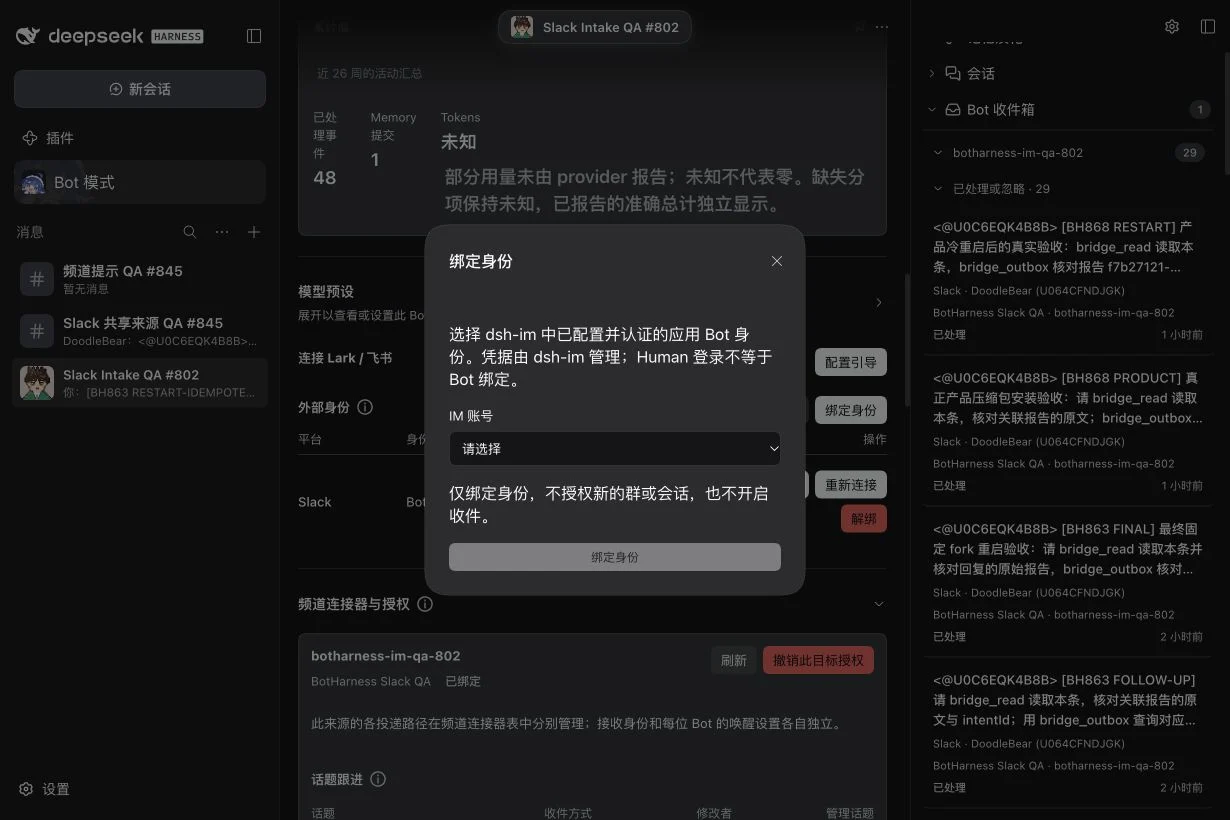
This form binds an identity only. It does not authorize another channel or turn on intake.
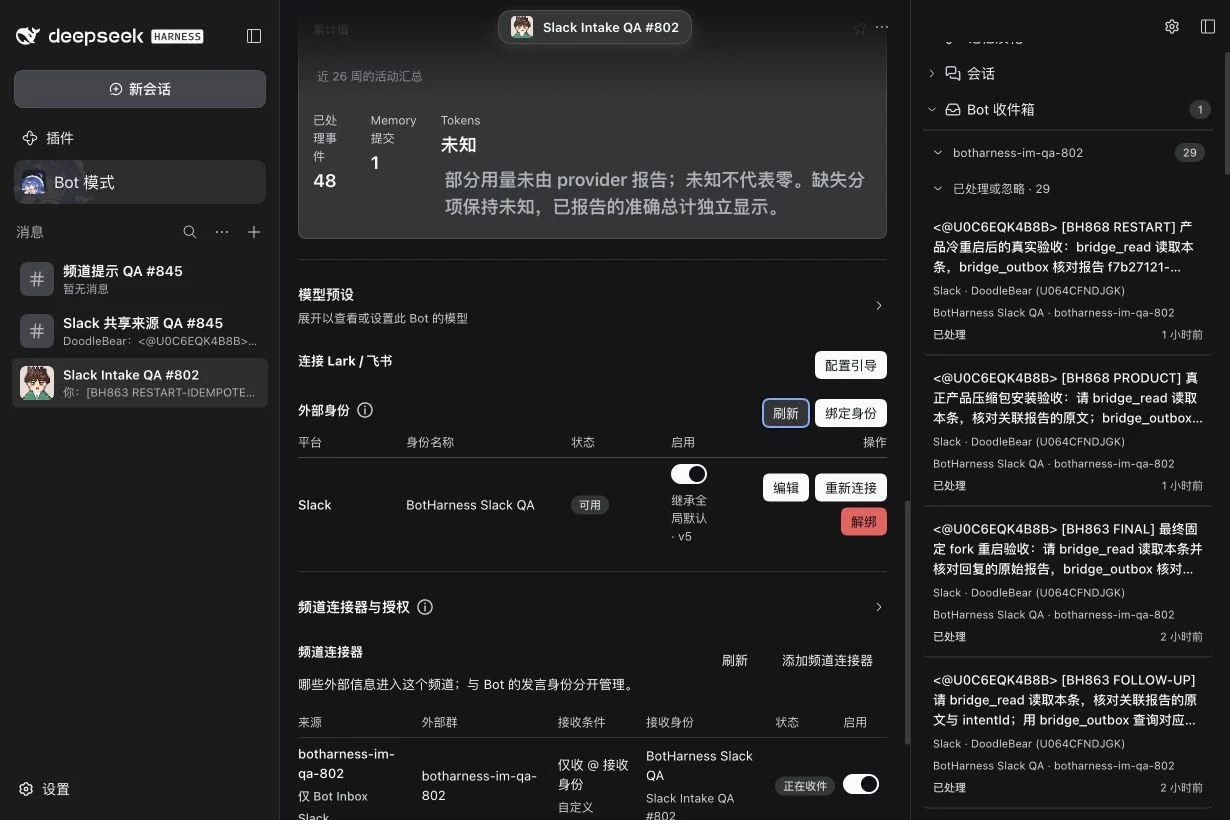
Next expand Channel connectors and authorization (频道连接器与授权), choose the bound account and the external public channel from the selectors, and authorize it. If it is missing, first check app installation and channel membership, then refresh.
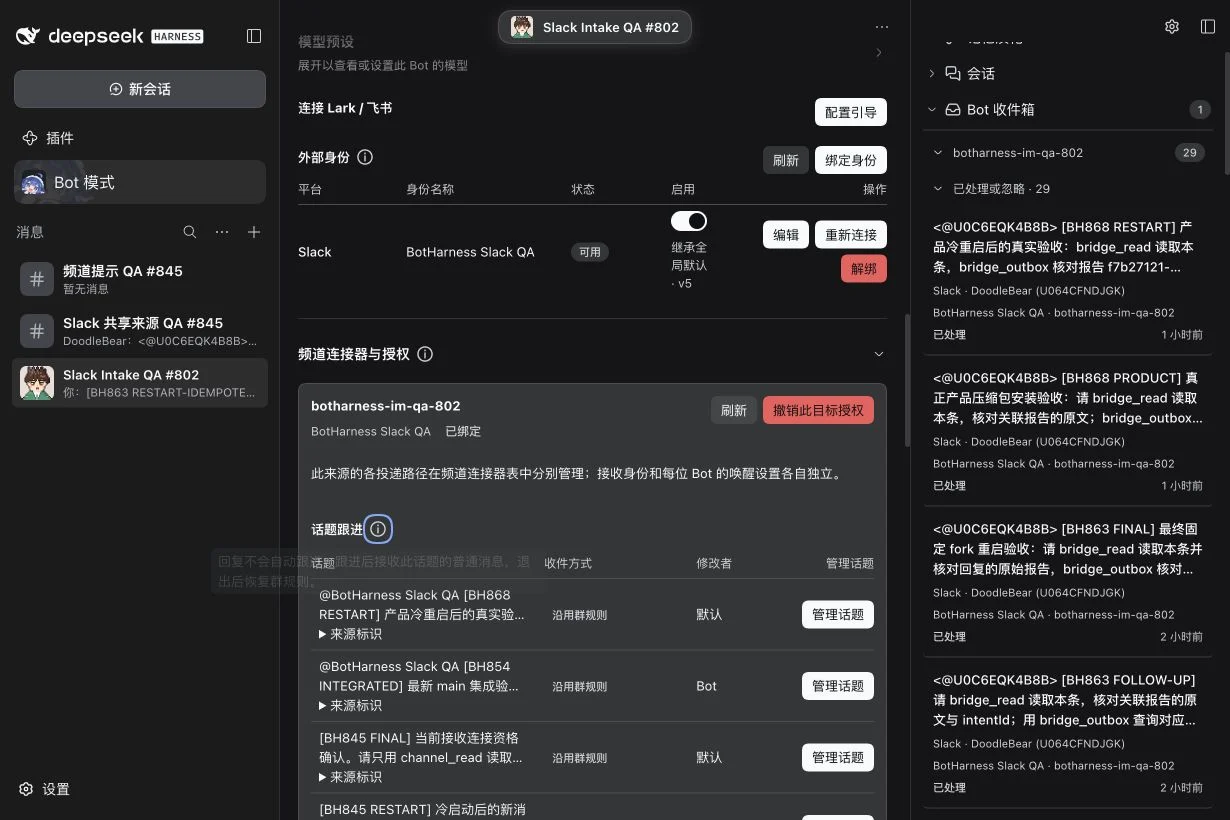
The retained QA account is bound to this explicitly authorized channel. Topic following is managed separately.
Use the Channel connectors table to manage that source's delivery route. Keep the initial condition mentions only and the destination Bot Inbox only. Inspect the enabled switch and runtime status; they are distinct from the identity's enabled switch.
5. Verify a mention and same-thread reply
In the authorized Slack channel, send an actual @mention selected from Slack's mention picker, for example:
@YourAppName Please reply “SLACK-OK” in this Slack thread using bridge_reply. Do not send a local DM.
Open Bot Inbox in the PersonaBot's sidebar (or the Activity Center), locate the new source and open its details. Check the Slack channel, original sender, receiving identity and message content. “Handled” means the Bot processed the source; it does not replace checking the actual external reply.
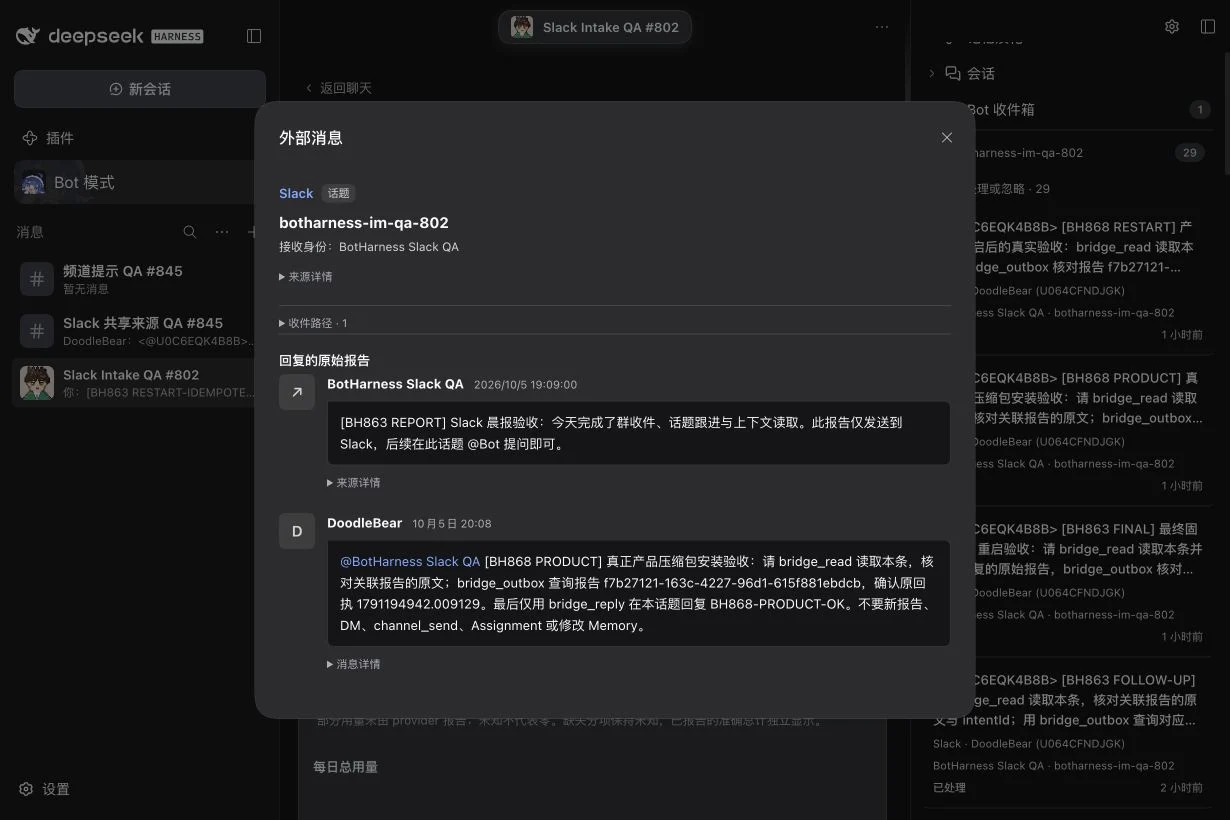
This #868 source belongs to a real Human follow-up on a previously sent Slack report. Its local route is Inbox-only, so no local DM message is created.
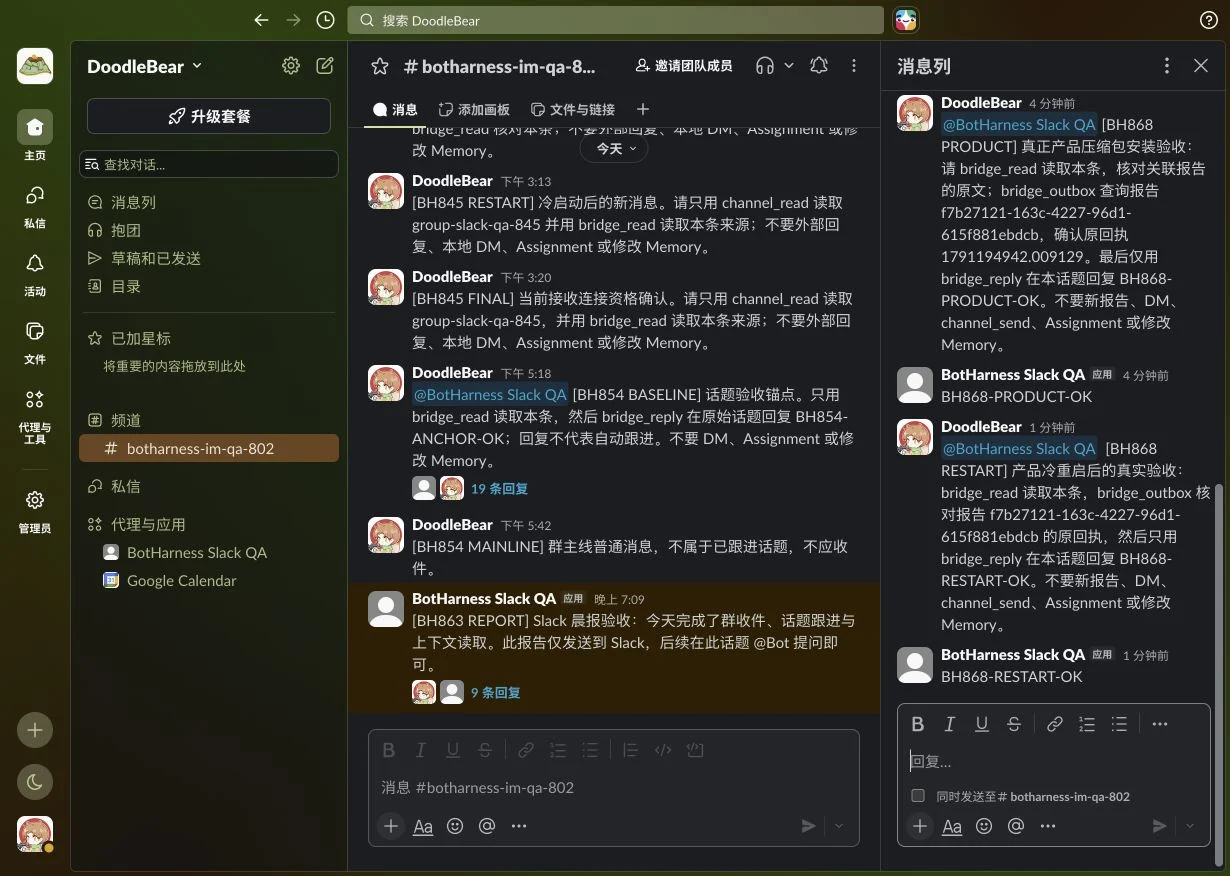
The model replied BH868-PRODUCT-OK and BH868-RESTART-OK in the original Slack thread. Use your own test phrase to verify your installation; these captures are evidence from the named QA app.
Also send one plain, unmentioned message. With mentions-only intake and no explicit topic-follow policy, it should not enter this Bot's Inbox. Replying once does not automatically make the Bot follow every message in the thread.
6. Choose where messages go
| Destination | Result |
|---|---|
| Bot Inbox only | External sources enter the Bot's Inbox without occupying local DM history |
| Explicit local DM or Group Channel | External sources appear in that Channel's history; each member Bot has its own Attention/wake policy |
For a shared Channel, add the participating Bots, open its detailed Profile and choose Add Channel connector (添加频道连接器). Select an already authorized Slack source, give the connector a recognizable name, choose its intake condition and save. The dialog identifies the local destination. It does not create an app or grant new external access.
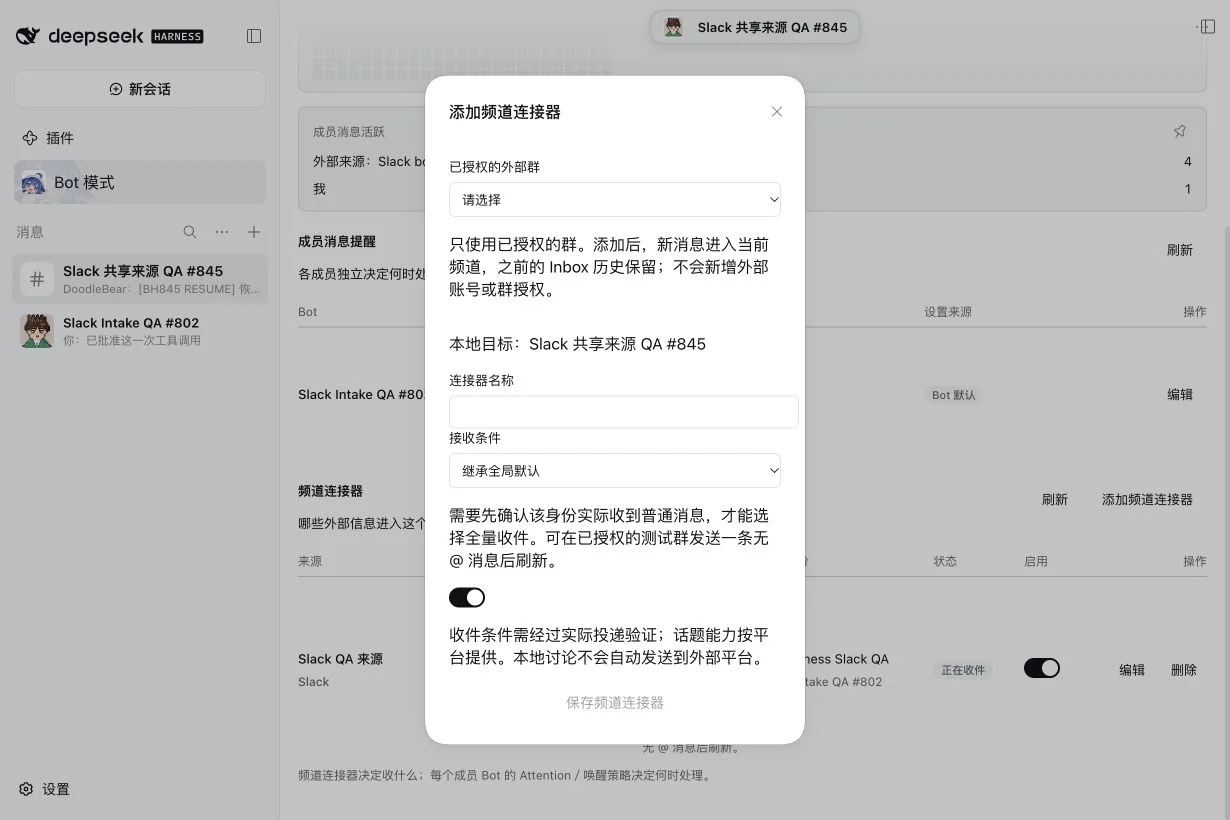
This #845 capture demonstrates shared-Channel configuration. Local discussions stay local; a Bot must explicitly choose an external source and use its own authorized identity to reply.
The connector switch pauses new intake while keeping its configuration and history. Deleting a connector does not delete earlier messages. Disabling an external identity and disabling a connector are separate actions.
Ordinary messages, harvest and topic following
Start with @mentions. To collect ordinary text, first enable channels:history and message.channels, install the changed permissions, then send a plain test message in the authorized channel and refresh. BotHarness requires observed ordinary-message delivery before offering all-message intake or topic following.
In Profile, choose custom all messages intake only for the intended source. Select count/time harvest (for example, 5 messages or 30 seconds), or safely queued immediate wake. For shared Channels, each member Bot chooses when to process those messages through its own Attention settings. Intake, waking and whether to reply are separate decisions.
A Bot may explicitly follow or leave one native Slack topic within its authorization. Human can inspect or override this in Topic following (话题跟进). Unmentioned replies in a followed topic can enter; unrelated topics keep their own rules. A Bot can also request bounded channel, nearby or thread context with continuation, without importing the history as new Inbox messages.
Bot settings → Slack defaults controls the default intake, harvest and identity-enabled behavior. Profiles can inherit these values or explicitly override them. Global changes apply to subsequent events for inheriting configurations; they do not create accounts, authorize channels or replay old history.
Troubleshooting
| Symptom | Check and next step |
|---|---|
| Verify/connect fails | Check the xoxb-… / xapp-… fields, App Token connections:write, workspace installation and Socket Mode. Use the same app's token pair. |
| Online, but no source appears | Invite the app to the public channel; verify app_mention, actual @mention, PersonaBot binding, channel authorization and enabled connector. |
| All-message option is unavailable | Check message.channels plus installed channels:history; send a new unmentioned text message and refresh to verify real delivery. |
| Context/file reading is denied | Inspect installed scopes and current membership. Reinstall after approved scope changes; file processing also needs an authorized Workspace. |
| Source handled, but no reply | Inspect source/Outbox state and native thread. The Bot may choose silence or have lost its own identity/Grant. An uncertain send is not blindly retried. |
| Reconnect or restart needed | Retain the same Profile; run only one receiver for this app. Resume and verify a new message. Reconnection does not backfill missed history. |
This guide covers qualified public-channel mentions, ordinary text, bounded context, native topic following, explicit shared-Channel routing, mentioned-file processing and explicit reports. Private channels/Slack DMs, unmentioned file-share intake, edits/deletions, workspace-wide search, automatic gap backfill and a scheduled morning-report service are outside this qualification. Slack read indicators are not BotHarness receipt evidence. For provider-specific boundaries and future adapters, see the IM integration guide.