
Docs
Display and layout
Resize, reorder and hide sidebar entries, with explicit save and cancel behavior.
In a Bot DM or local group, open the Channel sidebar and click its gear, Channel sidebar display settings. These controls affect presentation, not the Bot’s model, Memory contents or execution permissions.
Width and disclosure
- Drag the sidebar’s left separator to resize it. The default width is 320 px, with a 260–560 px range.
- Focus the separator and use Left/Right arrow keys for keyboard resizing; Home/End choose the minimum/maximum width.
- Click an entry title to expand/collapse it, and the edge toggle to close/open the whole column.
- In a narrow window, the sidebar opens as an overlay. Close it with its toggle, the backdrop or Escape. Changing the selected chat closes the temporary overlay.
Order and visibility
- Choose Edit sidebar in the gear menu.
- Drag an entry’s handle to move it. Alternatively, focus the handle and use Up/Down arrow keys.
- Use Hide … or Show … to choose which entries appear.
- Click Done to save the draft, or Cancel to discard it.
- Restore defaults resets the draft’s default order and visibility; click Done to apply it.
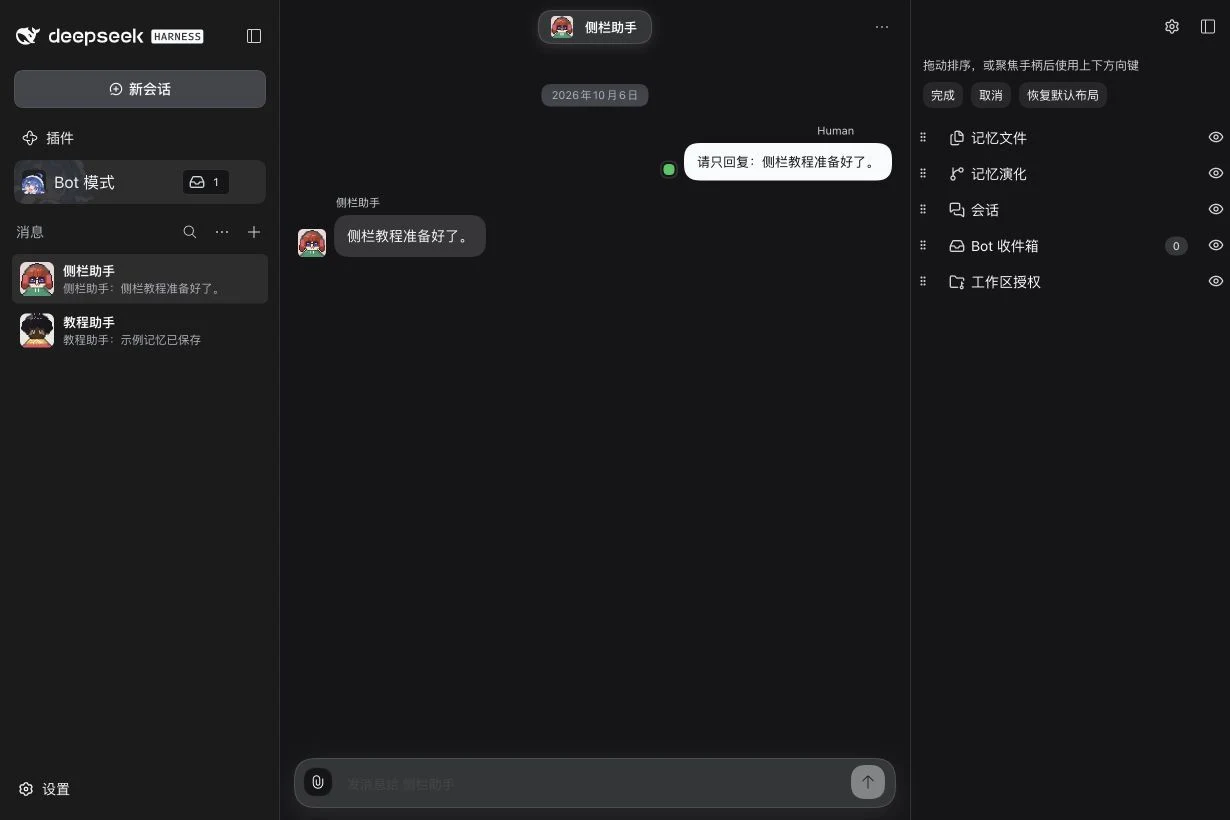
Hidden entries keep their data. If everything is hidden, use the gear menu to edit and show entries again. Bot and Channel layouts have separate ordering/visibility preferences; switching between Bots does not create a new Bot-specific order. Expanded/collapsed entries are remembered for the selected Bot or Channel. Preferences are stored in the current client browser; this guide does not promise that another browser or device shares them.
Feature display settings
| Gear-menu option | Choices and effect |
|---|---|
| Memory evolution · Terminology | Memory or Git labels/grouping; no repository change. |
| Sessions · Session view | Current or All for the selected Bot’s owned Sessions. |
| Sessions · Layout | Flat or By workspace; groups do not relocate Sessions. |
These menu selections apply immediately. They are separate from the Edit sidebar draft’s Done/Cancel buttons. Opening a feature settings submenu can temporarily preview that entry; closing the menu restores its ordinary disclosure state.
For details, read Memory evolution and Sessions. Optional plugins may add their own display settings when available. All sidebar features.