
Docs
Channel sidebar
Find the tools beside a Bot chat or group, then open the matching feature guide.
The Channel sidebar is the right-hand column in Bot mode. It follows the selected chat: a PersonaBot DM shows that Bot’s own resources; a local group shows the group’s members and management controls. Opening a native DSH Session takes you to a different, Session-scoped interface.
These pages use DSH 0.2.0-rc.1 and the public deepseekbot@0.1.0-alpha.1 package. First complete installation and API and Bot model setup.
Open the sidebar
- Enter Bot mode and open a Bot DM or a local group in the left roster.
- If the right column is closed, click Expand the Channel sidebar at the right edge.
- Click an entry’s title to expand or collapse it. Several entries can remain open together.
- Switch chats to inspect the resources for that Bot or group. Check the chat header before using an action.
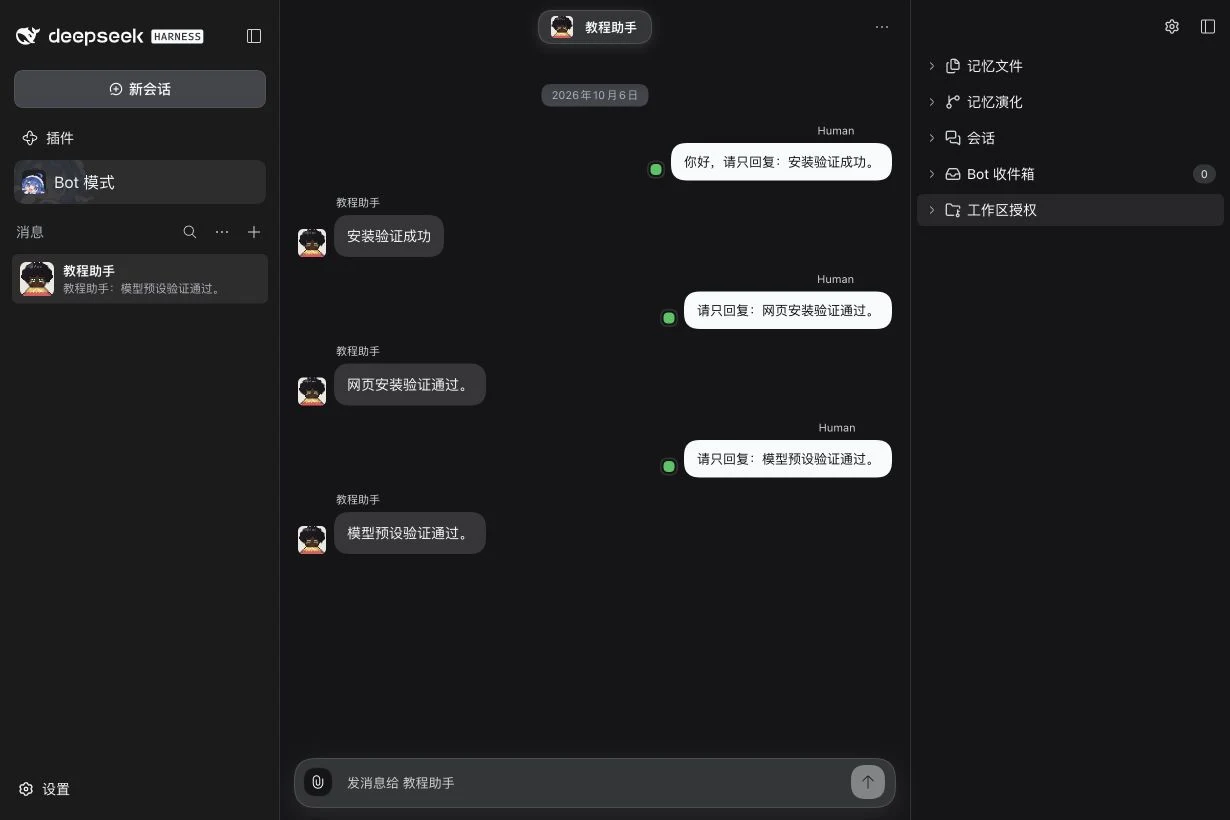
Choose a feature
| In a Bot DM | What you can do |
|---|---|
| Memory files | Browse the current repository tree and read a file in the center. |
| Memory evolution | Inspect uncommitted changes, Git history, branches and recovery checkpoints. |
| Sessions | Open this Bot’s Orchestrator and Assignment Sessions in DSH. |
| Bot Inbox | Inspect source messages and Assignment reports that the Bot has received. |
| Workspace Grants | Review and explicitly authorize the Host folders available to this Bot. |
| In a local group | What you can do |
|---|---|
| Members and group management | Inspect members, invite a Bot, handle join requests and edit the group. |
Display and layout explains width, entry ordering, visibility and feature-specific display options. Settings guide covers the rest of the non-IM settings.
Why an entry may be missing
Bot-only entries do not appear in a group; group management does not appear in a Bot DM. The Bot Inbox entry is conditional on having records or a loading/error state. An entry may also be hidden through Edit sidebar.
Optional plugins can contribute further entries. The public alpha.1 product does not include the Browser or Computer packages: their absence is expected. When those packages are installed and available, follow Share a browser tab or Computer export and migration for their separate prerequisites and procedures. Installing an IM connection is a separate setup flow.